Getting Started
API Keys
API Keys
API keys authenticate requests from your application to the Aivana API.
Open API Keys
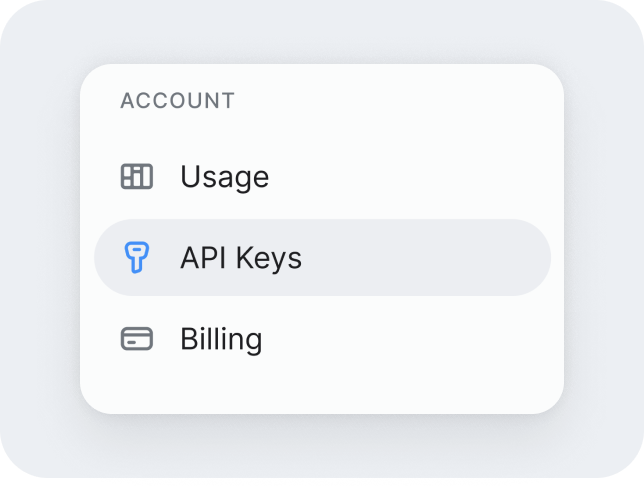
Sign in to AI Studio and click API Keys in the left sidebar.
Create an API key
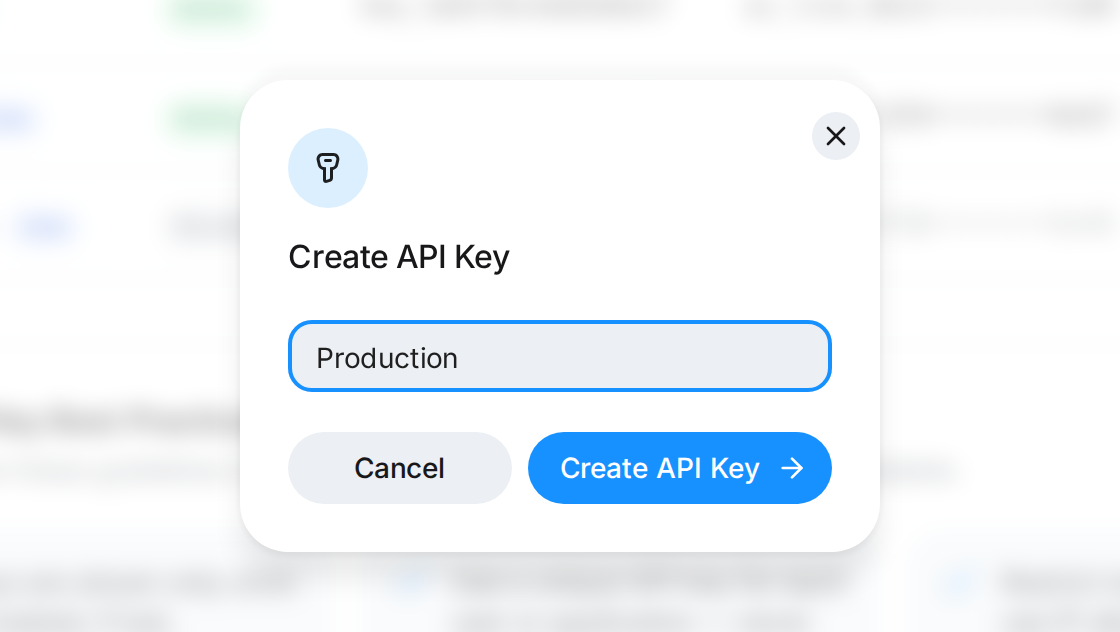
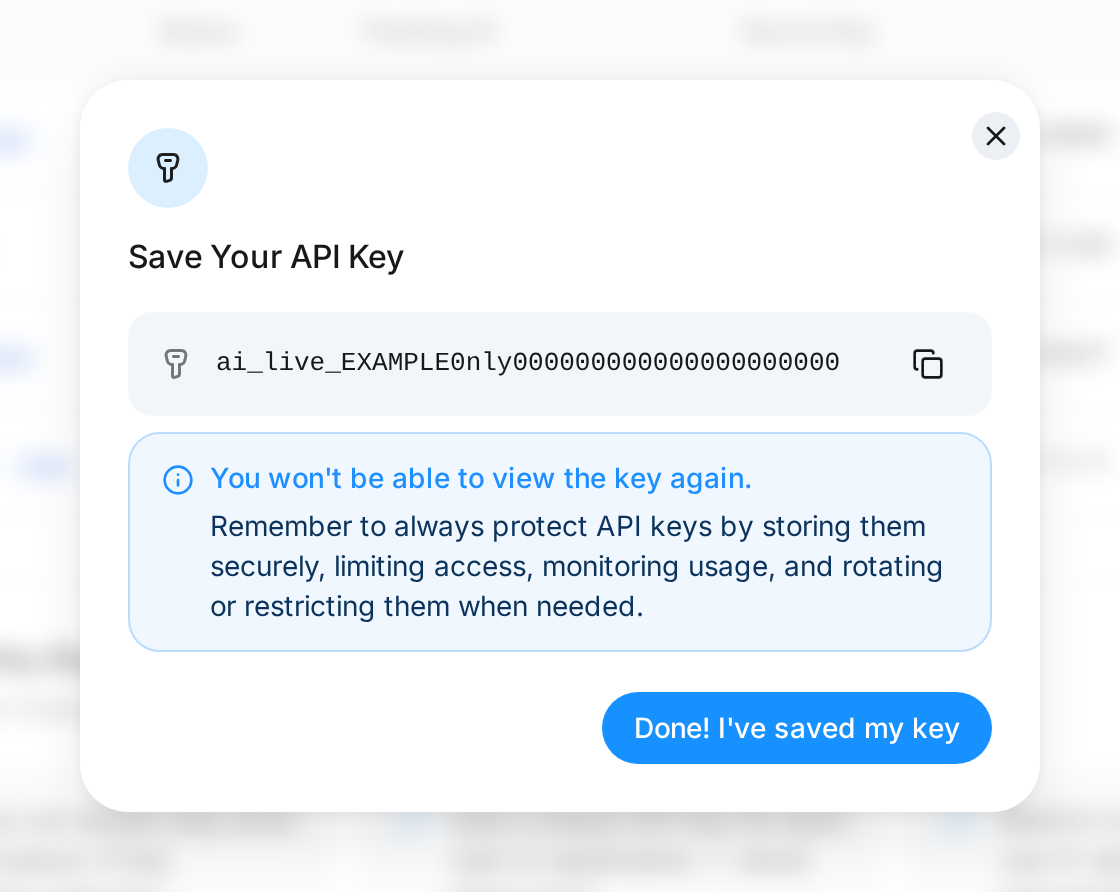
Click "Create API Key", enter a name for the key, and click "Create API Key" in the dialog. Your new key is shown once, in the "Save Your API Key" dialog: copy it and store it securely, then click "Done! I've saved my key".
Understand key details
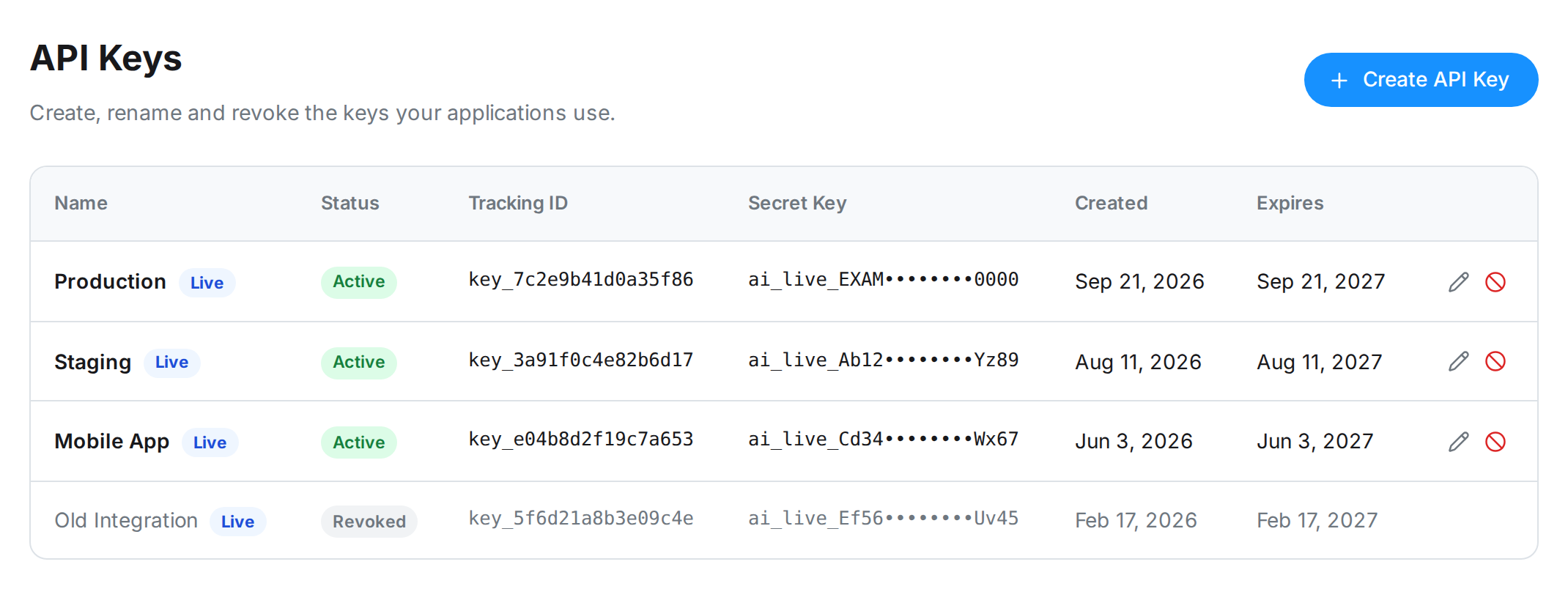
For each key, the API Keys page shows:
| Field | What it shows |
|---|---|
| Name | Your label for the key, with a Live or Test badge (live keys start with ai_live_, test keys with ai_test_). |
| Status | Active or Revoked. |
| Tracking ID | A safe identifier for the key. Quote it when you contact support; never share the secret key itself. |
| Secret Key | Masked: only the beginning and the last four characters, such as ai_live_Ab12••••••••Yz89. |
| Created / Expires | When the key was made and when it stops working. |
To see when each key was last used and how many tokens it used in the last 30 days, open Usage & Insights.
Use the icons at the end of a row to Rename or Revoke a key. Renaming changes the name only: the key keeps working and nothing using it is interrupted. Revoking asks you to confirm, then disables the key immediately: requests made with it are rejected, and this can't be undone. A revoked key stays in the list, marked Revoked, with no actions. To replace a key, create a new one, switch your application to it, then revoke the old one.
Live and test keys
A key's prefix says which environment issued it, so you can tell at a glance what you are holding.
| Key | Prefix | What it is for |
|---|---|---|
| Live | ai_live_ | Your real application. Keys created in AI Studio at developers.aivana.ai are live keys, and they call the production API at api.aivana.ai. |
| Test | ai_test_ | Aivana's pre-production environments. A test key is issued by one of them and is accepted only there, so it won't work against api.aivana.ai. |
A test key is not a free sandbox
The prefix only names where a key came from. It doesn't switch a request into a simulated or cheaper mode on the production API. If a request is refused as unauthorized and your key starts with ai_test_, you are most likely sending a key from another environment: use a live key from AI Studio.
Use your API key
Send the key in the X-API-Key header, or give it to an official SDK. See Quickstart for a first request and Generate for the API.
curl https://api.aivana.ai/v1/generate \
  -H "X-API-Key: $AIVANA_API_KEY" \
  -H "Content-Type: application/json" \
  -d '{"prompt": "Write a haiku about the ocean."}'
Security checklist
Keep keys in a server-side secret manager or an environment variable
Never hardcode a key in your source
Never place a key in browser or mobile code
Revoke a compromised key immediately, then switch to a new one
Monitor each key's usage in Usage & Insights
Never share a key in public repos, chat or support requests: use its Tracking ID instead
Learn more
Try the Playground
Experiment with Aivana MMI — no account or code required.
Quickstart Guide
Establish environment, initiate clients, and issue trial calls.
Still have questions? We are here to help!